
Client monitoring for agencies is the habit of checking each account’s results so you know which client needs attention today, before the next call. With the Swydo MCP connected, ChatGPT can pull your live Swydo data, compare every client you manage and put the biggest drops at the top of the list.
This guide walks through that review step by step, with the prompts we used and the answers ChatGPT gave. You’ll go from a portfolio-wide comparison to the campaigns behind a drop, then to a dashboard or client update you can use.
The Swydo MCP beta works in ChatGPT and only reads your data, so nothing in your Swydo account changes while you explore. Every screenshot comes from a real ChatGPT conversation about Serp Beat, a Swydo demo client.
What Client Monitoring Means for Agencies
Client monitoring is the ongoing review of each client’s marketing performance against its goals and previous results. Your team chooses the KPIs to watch, checks for meaningful changes and decides which accounts need action.
In this workflow, ChatGPT handles the reviews you request. Swydo’s client monitoring tools provide the standing KPI views and alerts between those reviews. The guide to monitoring vs reporting explains why an agency needs both.
How Swydo MCP Supports Client Monitoring
MCP stands for Model Context Protocol. It connects ChatGPT to Swydo so the assistant can request data from the clients and sources you already have permission to access.
These Swydo MCP capabilities support your client performance reviews:
| What you need to do | A question to ask | What the connection contributes |
|---|---|---|
| Review one client | How did Serp Beat’s Search Console clicks change between two comparable periods? | Data from the client’s connected account |
| Compare clients | Which clients lost the most Google Ads conversions? | Data for the clients and sources you can access |
| Go beyond a report | Which campaign and device breakdowns are available for this source? | Supported fields you can request without first adding a widget |
| Add business context | How does this spend compare with the budget sheet I attached? | Swydo figures to compare with the context in your conversation |
| Inspect a report’s setup | Which sources, metrics and dates do this client’s report widgets use? | Existing report structure and widget settings |
| Review existing alerts | Which alerts need attention, and what did their latest checks return? | Alert status, rules, available check results and notification settings |
| Check available data | Which report types, metrics and breakdowns can I request for this source? | Supported fields and report categories, including source-specific fields where available |
Swydo MCP supplies the data and existing account settings. ChatGPT uses that information to compare results, answer follow-up questions and present a useful summary. You can ask for supported metrics even when they aren’t already in a report widget.
Connect Swydo to ChatGPT
You need access to the Swydo MCP beta and a ChatGPT account or workspace that allows custom MCP connections. In ChatGPT on the web:
- Open Plugins, select the plus button and choose Add custom MCP server.
- Name the connection and enter https://ai.swydo.com/mcp as the server URL.
- Complete the connection settings, select Create as a plugin and install it. Sign in with your Swydo account when prompted.
- In your conversation, type @ and select Swydo.
You don’t need a Swydo API key. If the option is unavailable, check your workspace permissions and OpenAI’s custom MCP server instructions. Questions use your ChatGPT allowance rather than Swydo AI credits.
How to Monitor Your Clients in ChatGPT With Swydo
The review runs in six steps inside one ChatGPT conversation. The first three find the accounts that slipped and explain why. The last three turn what you found into something you can act on: a check of the report behind the numbers, a dashboard for your team and an update for the client.
One ChatGPT conversation, six steps
Find the accounts that slipped, then turn what you found into something you can use
Find and explain
1
Choose the metrics
Match each client’s goal and channel, then set the scope.
2
Rank the clients
Compare two complete periods and put the biggest losses first.
3
Find where it dropped
Break the decline down by campaign, then check it against your notes.
Act on it
4
Check the report
Confirm which sources, metrics and dates the client’s report uses.
5
Build a dashboard
Turn the comparison into KPI cards for your team’s review.
6
Draft the client update
Write a short report or email from the figures you verified.
Between reviews, Swydo keeps watching. Metrics Overview tracks client KPIs and Alerts check your conditions daily, so you hear about a drop even in a week nobody asked ChatGPT.
1. Choose the Client Metrics to Monitor
Choose metrics that match the client’s goal and channel. Start from the marketing KPIs your client really cares about, not every metric in the report. Which number would your client bring up first on the next call? Monitor that one. For paid leads, review conversions and cost per conversion. For organic search, compare Search Console clicks and impressions. Give ChatGPT the relevant targets and identify the clients you want to monitor.
List the active clients I can access in Swydo and identify which have connected Google Ads accounts.
ChatGPT can use the client and data-source lists to establish the scope before it compares results. If you want one client, name it in the prompt.
We asked ChatGPT to find Serp Beat and list its connected sources. It returned the accounts available for that demo client:
Find the client named Serp Beat in Swydo. Show the connected data sources for that client only.
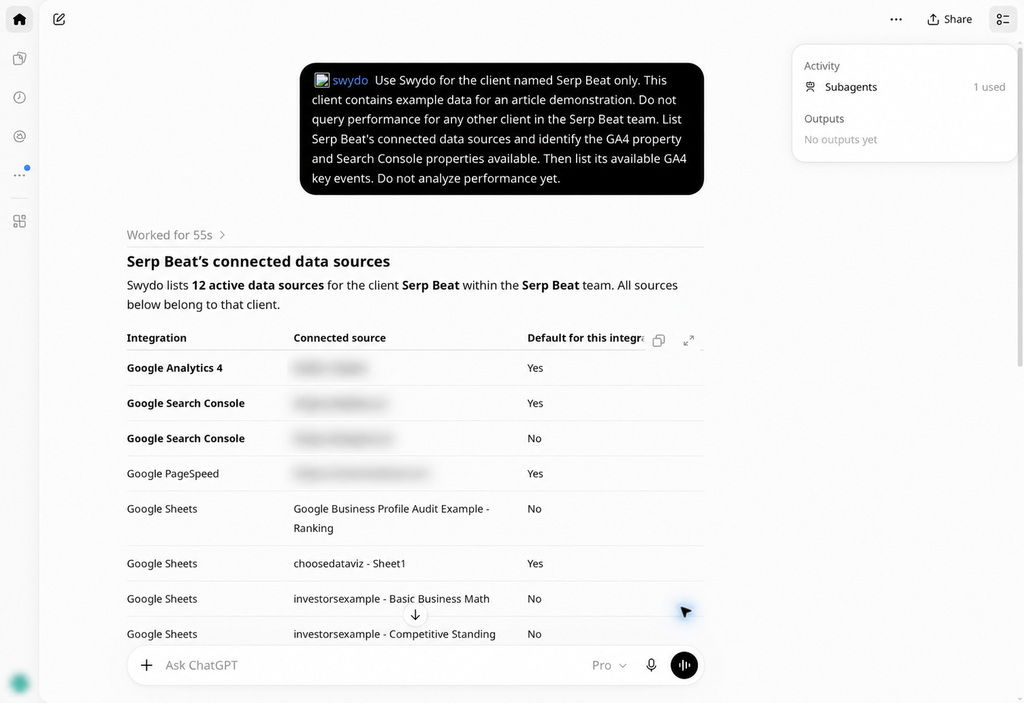
Figure 1. ChatGPT identifies the connected sources for the example client.
2. Find Underperforming Clients With ChatGPT
A useful first prompt names the channel, the comparison period and the metric that matters. For a Google Ads portfolio, try:
Use Swydo to compare the last 28 complete days with the previous 28 complete days for my active clients with connected Google Ads accounts. Show conversions, spend and cost per conversion for both periods. Rank clients by conversions lost and include the percentage change. State the dates and any accounts with unavailable data. Do not treat missing data as zero.
This gives ChatGPT a clear task: compare each client’s results with its own previous performance, then put the largest declines first. You can use another connected channel, provided it supports the metrics you request.
Rank by conversions lost, not by percentage change. A small account that slips from 4 conversions to 2 shows a 50% drop, while a larger client that loses 40 conversions might show only 12%. The second one usually deserves your call first.
Same two clients, two different priority lists
Google Ads conversions, last 28 complete days vs the previous 28
Ranked by % change
1
Small client
4 → 2 conversions
−50%
2
Large client
333 → 293 conversions
−12%
Ranked by conversions lost
1
Large client
333 → 293 conversions
−40
2
Small client
4 → 2 conversions
−2
A percentage ranking puts a two-conversion dip at the top. Conversions lost puts the client with the bigger business impact first, and the percentage still shows up as context.
Illustrative example figures.
Give ChatGPT your targets if you want it to flag missed goals. Without that context, a decline is a reason to review an account, not proof that it missed a business target. A planned budget cut, for example, may explain fewer conversions.
For a shorter priority list, follow up with:
Which three clients need attention first? Consider the size of the conversion loss, the change in cost per conversion and any targets I supplied. Give one reason and one next check for each.
We also asked ChatGPT to compare performance for the Serp Beat demo client. It returned the comparison below. This example uses Search Console data; the portfolio prompt above uses Google Ads.
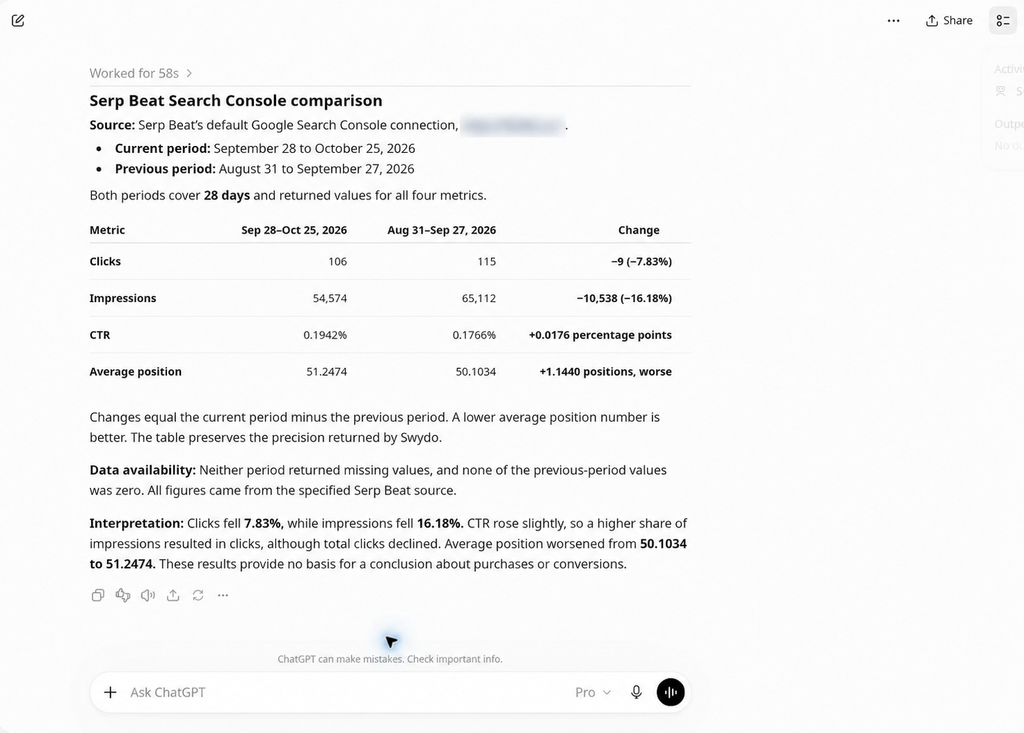
Figure 2. An actual ChatGPT response compares the example client’s Search Console performance.
3. Ask Where the Decline Happened
Once you have a shortlist, stay in the same conversation and choose one account for a closer look:
For the client at the top of the Google Ads comparison, show which campaigns contributed most to the conversion decline. Use the same periods and include changes in spend. Check which breakdowns are available before you request them.
Swydo MCP can look up the available metrics and dimensions, then retrieve the supported breakdown. That lets you move from a client-level change to the campaigns or other segments behind it without first adding a widget to a report.
If you have a budget sheet or campaign notes, attach them and ask:
Compare this result with the budget sheet and campaign notes I attached. Identify planned changes that could help explain the decline. Separate confirmed facts from possible causes that still need a check.
ChatGPT can combine the Swydo figures with the context you provide. The connection doesn’t see every file or client decision in your agency, only what you share in the chat.
4. Check the Report Behind the Numbers
You can also ask about a report that already exists. The MCP can inspect its sources, metrics and date settings, which helps when you want to understand what a report measures.
For the client Serp Beat only, inspect the Google Search Console + Suggestions report and a Clicks widget. Show the source, metric and date settings.
We asked ChatGPT to inspect the demo client’s report. It returned the report and widget settings below. This checks the setup; the MCP requests performance figures separately.
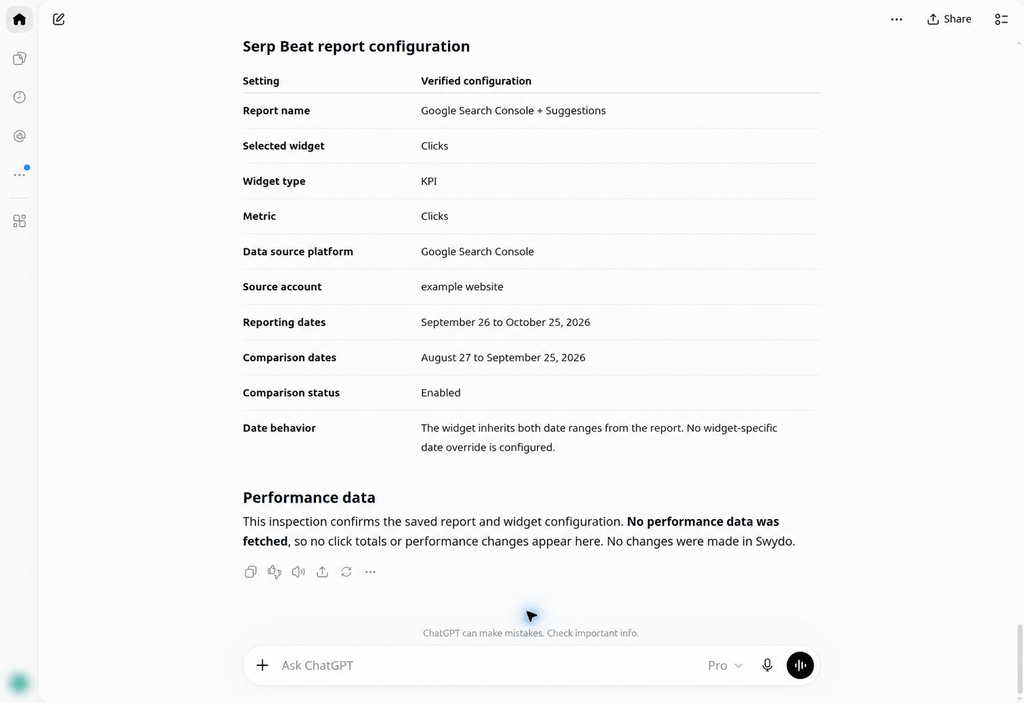
Figure 3. ChatGPT shows the settings of an existing report and widget.
5. Create a Client Monitoring Dashboard in ChatGPT
You can ask ChatGPT to turn the results into a dashboard for your own account review. Once it has the comparison, tell it what you want to see:
Turn this client comparison into a visual dashboard in this chat. Put the clients that need attention first. Show conversions, spend, cost per conversion and the change between the two periods for each client. Include the dates and source. Use only the retrieved figures and mark unavailable data clearly.
You can then ask for a simpler view, a chart for one client or a summary of the three accounts to discuss with your team.
For our example, we asked ChatGPT to turn the Serp Beat Search Console results into a dashboard. It produced the KPI cards below.
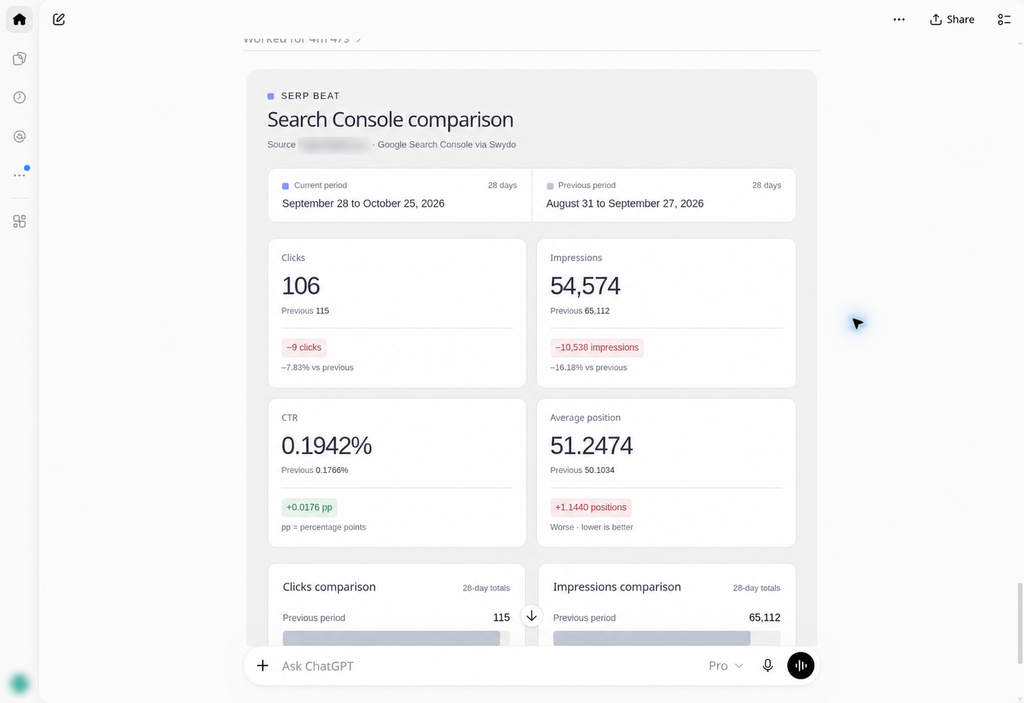
Figure 4. ChatGPT presents the example client’s retrieved figures as a personal dashboard.
The dashboard lives in ChatGPT and shows the figures from that moment. Ask for fresh figures when you want an updated view, and build anything client-facing as a report in Swydo, where the data stays current on its own.
6. Prepare a Client Report or Email
You can also use the results to draft a report for the client. Keep the request focused on one account and specify what the client needs to know:
Use the verified results for the Google Ads client we reviewed to draft a short client report. Include the key metrics, what changed, why it matters and the next steps we agreed in this conversation. Separate confirmed facts from questions that still need review. Do not invent completed work or promised results.
For an email, ask ChatGPT to turn the same report into an update of fewer than 150 words. You can adjust the tone and level of detail without another data export.
Before you share it, check the account, figures and dates, and confirm that the proposed actions match your plan. Our client reporting best practices guide covers how to explain results and next steps clearly.
Review the draft, then use your normal Swydo report-sharing process or email workflow to send it.
Keep Client Monitoring Active Between Reviews
Set a review cadence for your team, such as a weekly account check. Reuse the prompts and ask ChatGPT for fresh figures each time.
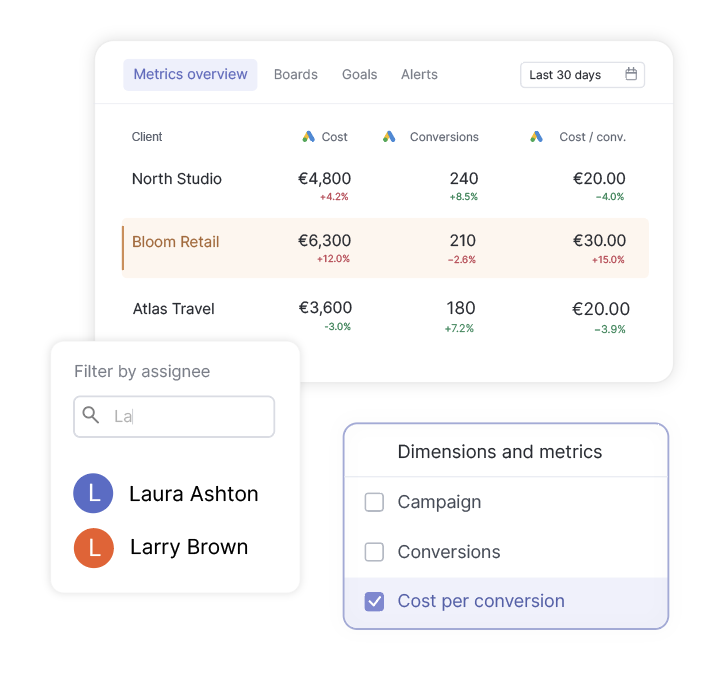
Between reviews, use a Metrics Overview in Swydo to follow client KPIs and create alerts for the conditions your team needs to watch. Swydo checks alert conditions daily, and you can select the days they run.
ChatGPT can also inspect alerts that already exist:
Show the existing alerts for the client I am reviewing. Include their status, metric and latest available check results. Identify any failed checks.
Create or change those alerts inside Swydo, where they keep running after the chat ends. A ChatGPT review only happens when someone asks for one, so the alert is what catches the week nobody did.
Where Swydo Takes Over From ChatGPT
ChatGPT is where you investigate. The work that has to last happens in Swydo and your ad platforms:
- Build and edit reports, widgets, clients and alerts in Swydo. The MCP reads them, so you can check a setup from the chat and change it in the app.
- Send and schedule client reports from Swydo, using the draft from your conversation as the commentary.
- Make campaign changes in the ad platform itself. ChatGPT helps you decide what to change, and you make the change.
- Manage who sees which clients through Swydo team permissions. The MCP follows them exactly, so each person gets answers only about the clients they can already access.
ChatGPT can highlight a decline and suggest what to check next, but the cause still needs your judgment. Give it your targets and plans, and its answers get sharper.
Make Client Monitoring Part of Your Account Review
For your next account review, ask ChatGPT which clients had the largest performance drop. Follow up on the account that needs attention first, then request the dashboard or client update you need.
You leave the conversation with a practical review list, supporting figures and a clear next step for each account.
Client Monitoring With ChatGPT and Swydo FAQ
Direct answers for agencies reviewing client performance in ChatGPT with live Swydo data
An MCP server is a connection that lets an AI assistant like ChatGPT pull data from another tool while you chat. MCP stands for Model Context Protocol, an open standard many AI tools support. The Swydo MCP server lets ChatGPT read your Swydo reporting data when you ask a question.
Yes, through Swydo. Once you connect the Swydo MCP, ChatGPT can pull data from the sources you’ve connected to each client in Swydo, such as Google Ads, Meta Ads, GA4 and Search Console. You don’t need to connect ChatGPT to each ad account separately.
Add Swydo in ChatGPT as a custom MCP server with the URL https://ai.swydo.com/mcp, then sign in with your Swydo account. To use it, type @ in a chat and select Swydo. You don’t need an API key.
You need a paid ChatGPT plan that allows custom MCP connections, usually through Developer mode. Free accounts can’t add custom connectors. On business workspaces, an admin may need to turn on Developer mode or approve the connector first.
No. Questions run on your ChatGPT allowance, so they don’t use Swydo AI credits or add costs inside Swydo.
Yes. Each team member connects with their own Swydo login and only sees the clients they can access in Swydo. Swydo includes unlimited seats, so giving more people access doesn’t add seat fees.
Remove or turn off the Swydo connector in your ChatGPT settings. ChatGPT can no longer request your Swydo data, and your reports, clients and settings in Swydo stay exactly as they were.
Ask ChatGPT to compare two complete periods for every client and rank them by conversions lost. Then ask for the top three, with one reason and one next check for each. One prompt covers every client you can access in Swydo, as long as each has the data source you name.
Rank by conversions lost and keep the percentage as context. Small accounts swing hard in percentage terms, so a percentage ranking can put a minor dip above a large client that lost far more business.
| Client | Conversions | % change | Conversions lost |
|---|---|---|---|
| Small client | 4 to 2 | −50% | 2 |
| Large client | 333 to 293 | −12% | 40 |
Monitor the few metrics tied to each client’s goal. Lead generation clients need conversions and cost per conversion, ecommerce clients need revenue and ROAS, and SEO clients need Search Console clicks and impressions. Tracking everything makes real drops harder to spot.
Ask ChatGPT to break the drop down by campaign, device or another available dimension, in the same conversation. Then attach your budget sheet or campaign notes. A planned budget cut or a paused campaign often explains a decline that looks alarming on its own.
Yes. When a client asks how something performed, ask ChatGPT for the figure and answer with live Swydo numbers instead of promising to follow up. Name the date range in your question so the answer matches what the client means.
A weekly review of the whole portfolio works for most agencies, with daily alerts covering the days in between. Clients with large or fast-moving ad budgets may need a quick check more often.
Let Swydo do the watching. A ChatGPT review only runs when someone asks for one, while Swydo’s Metrics Overview and Alerts keep checking every day.
| Job | Where it happens |
|---|---|
| Spotting that a client moved | Metrics Overview and Alerts in Swydo |
| Finding out why it moved | ChatGPT, using live Swydo data |
| Adding budgets or campaign notes | ChatGPT, in the same conversation |
| Sending the client report | Swydo report sharing and scheduling |
The figures come from Swydo, the same data your reports use, so the numbers themselves are reliable. Errors usually come from the request, like a vague date range or the wrong client. Name the client, metric and dates, and check key figures against the report before you share them.
It’s almost always a different date range or setting. “Last 30 days” isn’t the same as last calendar month, and a period that includes today counts an incomplete day. Ask ChatGPT to state the exact dates it used, then compare them with the report’s widget settings.
Only the clients and data sources you can already access in Swydo. The connection follows your Swydo permissions exactly, so each team member gets answers about their own accounts and nothing more.
No. The connection reads your data, so nothing in Swydo changes while you work in ChatGPT. You build and edit reports, widgets, clients and alerts in Swydo as usual.
ChatGPT only receives the Swydo data you request in a conversation, limited to what your Swydo permissions allow, and it can’t change anything. How ChatGPT stores that conversation follows your ChatGPT plan’s data settings, so confirm those with your workspace admin before you bring in client data.
A CSV is a snapshot of one export, and ChatGPT only knows what’s in it. The Swydo connection pulls current data for any client you can access, and it can fetch metrics your export left out. You skip the export, the upload and the risk of analyzing last week’s file.
Yes. Ask ChatGPT to turn a client comparison into a visual dashboard in the chat, with the accounts that need attention first. It shows the figures from that moment, so build anything client-facing as a report in Swydo, where the data stays current.
Yes. ChatGPT can draft a short report or email from the figures it pulled, including what changed and your next steps. Review the account, figures and dates, then send it through Swydo’s report sharing or your usual email.
Yes. Ask ChatGPT to inspect a client’s report and it shows which sources, metrics and date settings each widget uses. It’s the quickest way to find out why two numbers that should match don’t.
Swydo AI works inside your Swydo reports and dashboards, writing summaries, wins, issues and recommendations. The Swydo MCP brings your Swydo data into ChatGPT, where you can compare clients and mix in files like budget sheets. Use Swydo AI for report commentary and the MCP for questions across your portfolio.
Know which client needs you first, and ask ChatGPT why with live Swydo data.
Start Your Free Trial Today